Board Game Lab in Claude
Board Game Lab is in Claude's connector directory. Connect it once, and Claude can design and playtest games in your Board Game Lab tab as you.
Open Board Game Lab in ClaudeClaude app and claude.ai
- Open Board Game Lab in Claude's connector directory. In the Claude app you can also open Customize → Connectors and search for Board Game Lab.
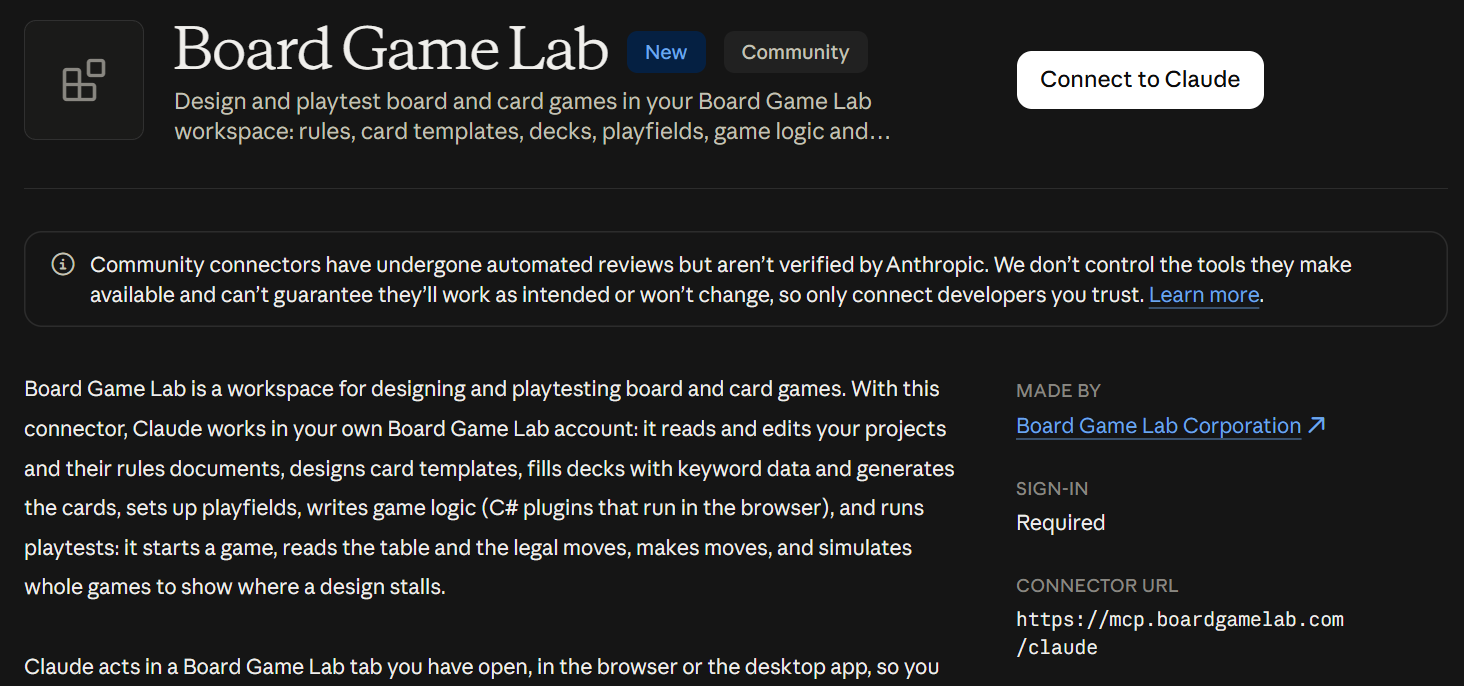
- Press Connect to Claude. A Board Game Lab page opens: sign in if you aren't signed in yet, and press Approve (more below).
- Back in Claude, Board Game Lab shows Connected.

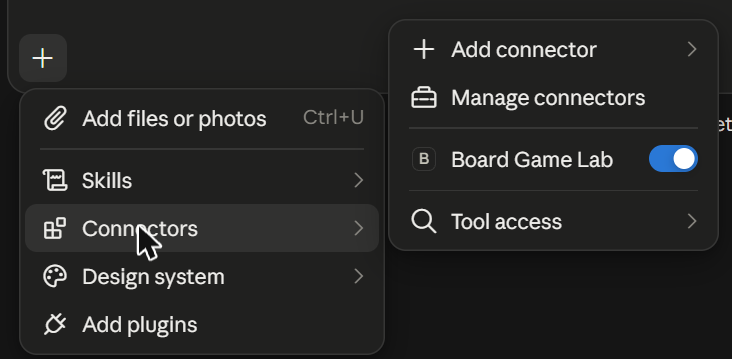
- Start a new chat. Board Game Lab is switched on under the + button next to the message box, in Connectors.
On a Team or Enterprise plan, an organization owner may have to allow Board Game Lab for the organization first, in Organization settings → Connectors (share this page with them if that isn't you).
Sign in to Board Game Lab
- Connecting opens a Board Game Lab page in your browser.
- Sign in there if you aren't signed in yet, and press Approve.
- Claude now acts as your Board Game Lab account. It never sees your password.
The access lasts up to 12 hours; after that, Claude opens the page again. To end it sooner, disconnect Board Game Lab in Claude's connector settings.
Use it in a conversation
- Say “Connect to my Board Game Lab.” If a Board Game Lab tab is open and signed in to the same account, Claude pairs with it. Otherwise it gives you a link: open it and choose Open in the browser or Open in the Board Game Lab app, and Board Game Lab opens already paired. The link works once, for 10 minutes, and only for your account.
- The first time Claude uses a Board Game Lab tool, it asks you: choose Allow once, or Always allow so it stops asking for that tool.

- Ask for what you want, for example “Open my Hearts project and add a standard 52-card deck” or “Here is my rulebook, build a playable prototype of it.”
- If you later work in another tab, or Claude says it has no tab, say “Pair with my Board Game Lab tab.”
Stay in control
Board Game Lab shows whether Claude is paired with your tab and lets you disconnect it (how); disconnecting Board Game Lab in Claude's connector settings ends its access to your account. More about staying in control.