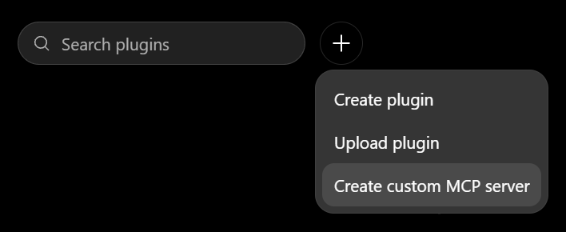
Press the + next to Search plugins and choose Create custom MCP server.
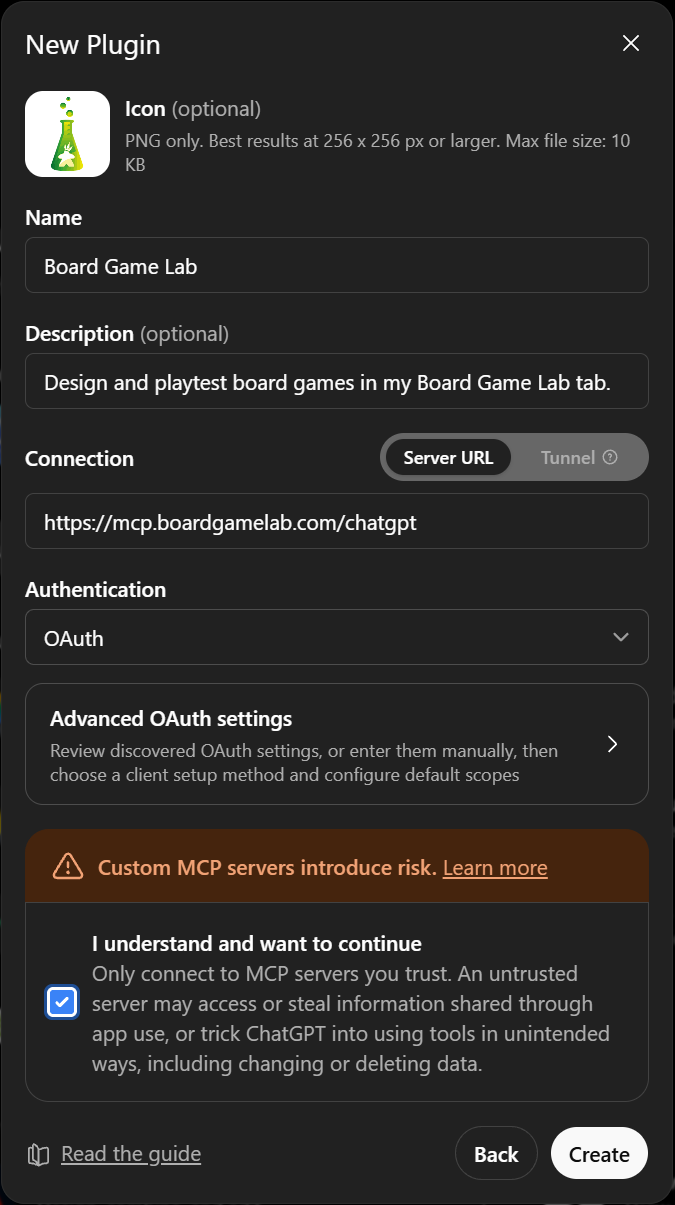
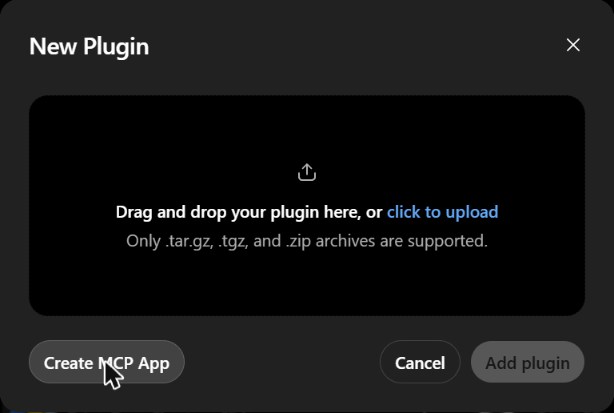
In the New Plugin window, press Create MCP App.
Fill in the form. Only Name and the address are required:
Iconoptional Skip it, or save the Board Game Lab icon to your computer, press the + next to Icon and choose it. It only changes how Board Game Lab looks in ChatGPT's menus.
Name: Board Game Lab
Descriptionoptional Leave it empty, or use: Design and playtest board games in my Board Game Lab tab.
Connection: keep Server URL and paste this address:
https://mcp.boardgamelab.com/chatgpt
Authentication: keep OAuth. Leave everything else as it is, including Advanced OAuth settings: ChatGPT finds the sign-in settings by itself.
Tick I understand and want to continue and press Create.
3. Sign in to Board Game Lab
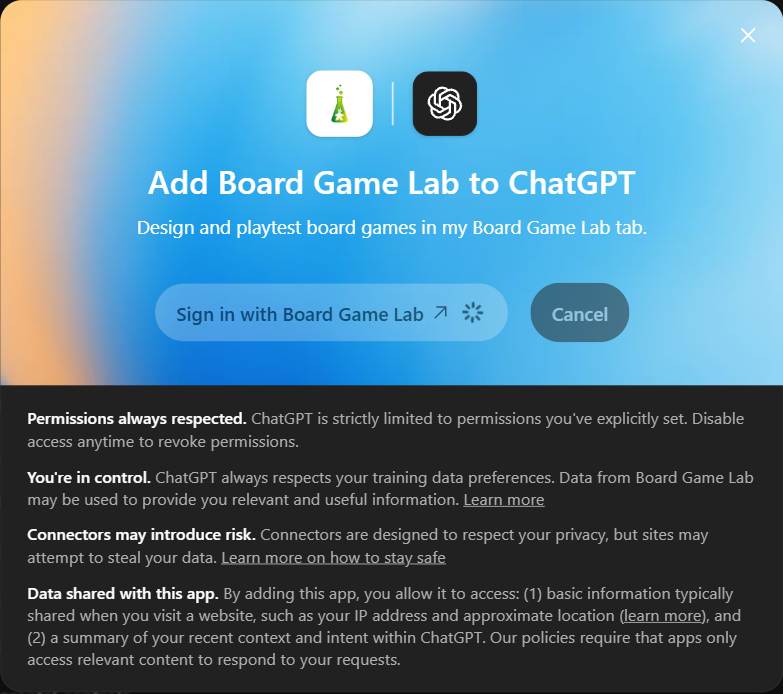
ChatGPT shows Add Board Game Lab to ChatGPT. Press Sign in with Board Game Lab.
A Board Game Lab window opens. Sign in there if you aren't signed in yet, and approve. If you have approved ChatGPT before, this happens by itself. ChatGPT never sees your password.
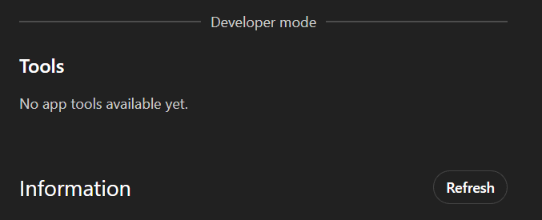
Back in ChatGPT, Board Game Lab's page shows your connected account. Its Tools section may still say “No app tools available yet”: press Refresh on that page, and ChatGPT confirms “Tools refreshed”.
The access lasts up to 12 hours. After that, ChatGPT asks you to sign in again.
4. Use it in a conversation
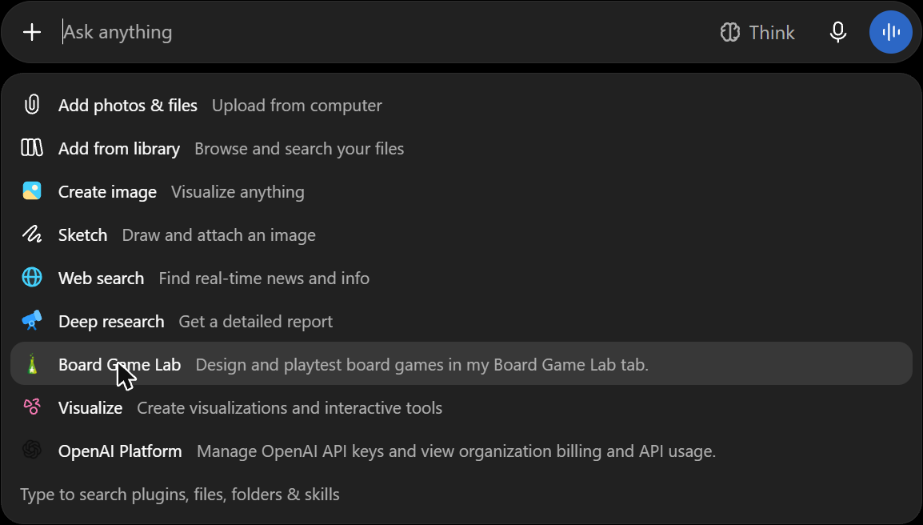
Start a new chat, press the + next to the message box and choose Board Game Lab (or type @ and pick it).
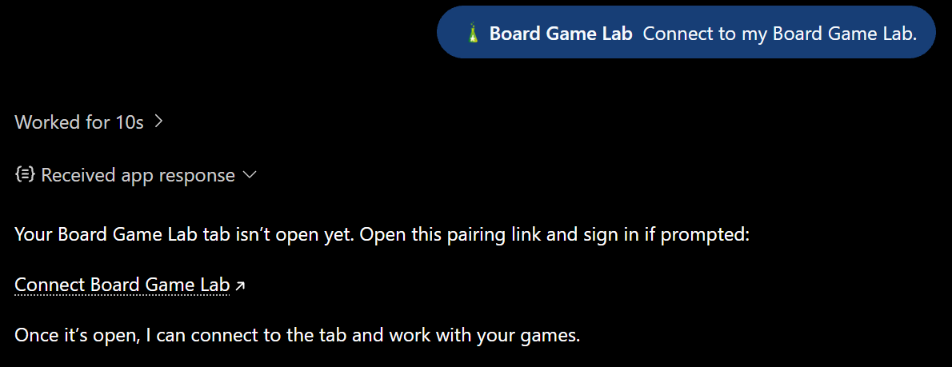
Say “Connect to my Board Game Lab.” If Board Game Lab is already open and signed in to the same account, ChatGPT pairs with that tab and you can skip to the last step.
Otherwise ChatGPT gives you a Connect Board Game Lab link.
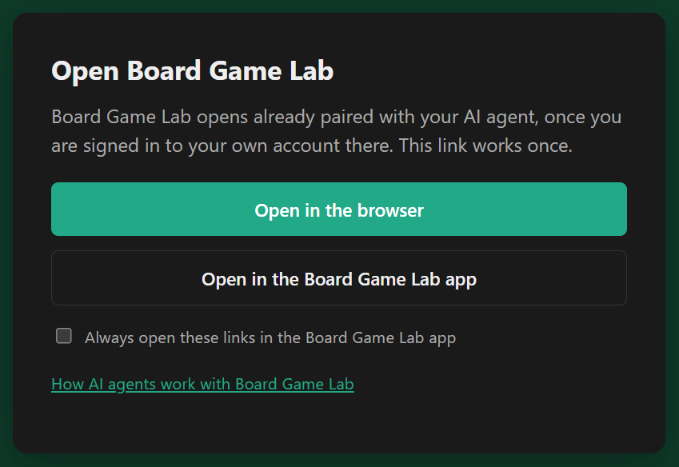
Click it and confirm with Open link. On the page that opens, choose Open in the browser (or the Board Game Lab app). The link works once, for 10 minutes, and only for your account.
Board Game Lab opens already paired with ChatGPT (what it shows).
Back in ChatGPT, ask for what you want, for example “I opened it. Which Board Game Lab projects do I have?”, “Open my Hearts project and add a standard 52-card deck” or “Here is my rulebook, build a playable prototype of it.”
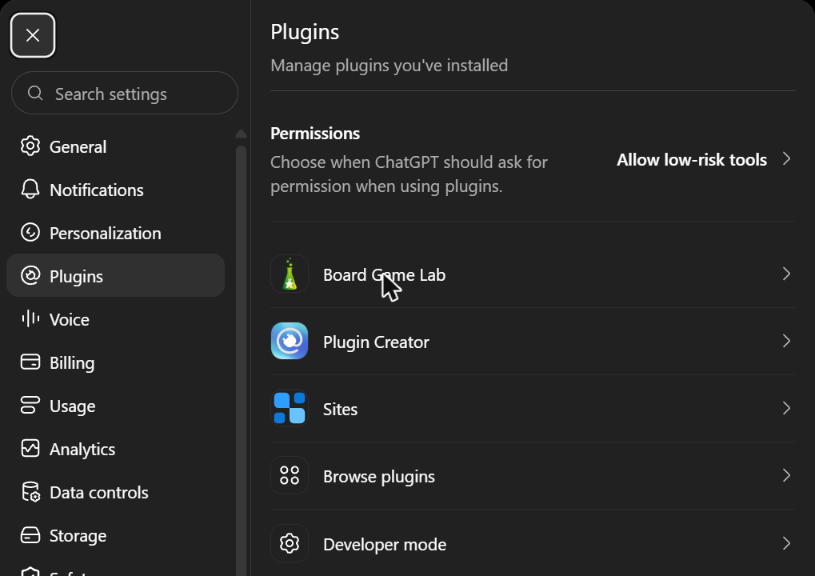
With ChatGPT's default permission (“Allow low-risk tools”), actions that only read run without asking; ChatGPT may ask you to confirm actions that change something. You can change that under Permissions on Board Game Lab's page in Settings → Plugins.
If something doesn't work
I can't find Developer mode
On a work account, a workspace administrator can turn it off. Ask them, or use a personal account.
Create stays greyed out
Tick I understand and want to continue. Changing the address un-ticks it.
ChatGPT says no Board Game Lab tab is paired
Open Board Game Lab in the same browser, signed in to the same account, and say “Pair with my Board Game Lab tab.”
ChatGPT asks me to sign in again
The 12-hour access has ended. Sign in again in the window it opens.
The tools are missing or out of date
Open Settings → Plugins → Board Game Lab, press Refresh, then start a new chat.
Board Game Lab shows whether ChatGPT is paired with your tab and lets you disconnect it (how); removing Board Game Lab in Settings → Plugins ends its access to your account. More about staying in control.
Remove Board Game Lab from ChatGPT
To put ChatGPT back the way it was before step 1:
Delete the app. Click your name at the bottom left, choose Settings → Plugins and open Board Game Lab.
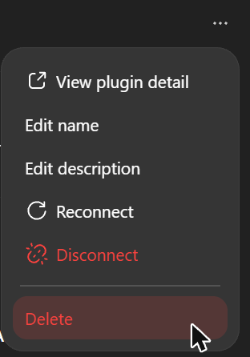
Press the ⋯ at the top right of its page and choose Delete. ChatGPT doesn't ask again; after a few seconds Board Game Lab is gone from the list, and with it ChatGPT's access to your Board Game Lab account.
To keep the app but sign it out of your account, choose Disconnect in the same menu instead.
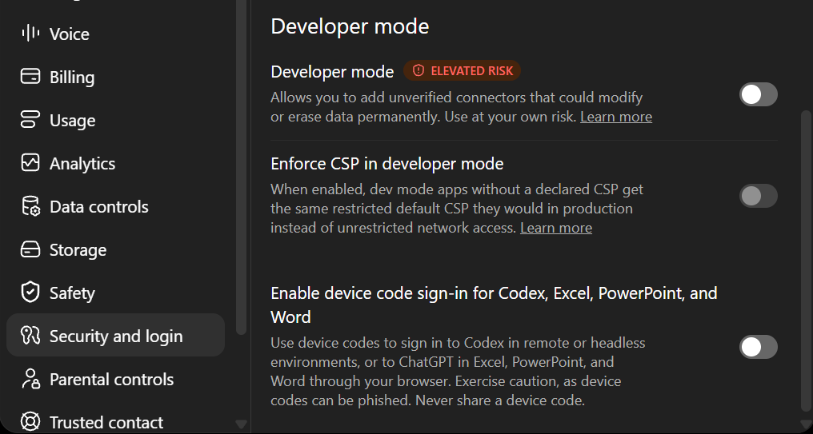
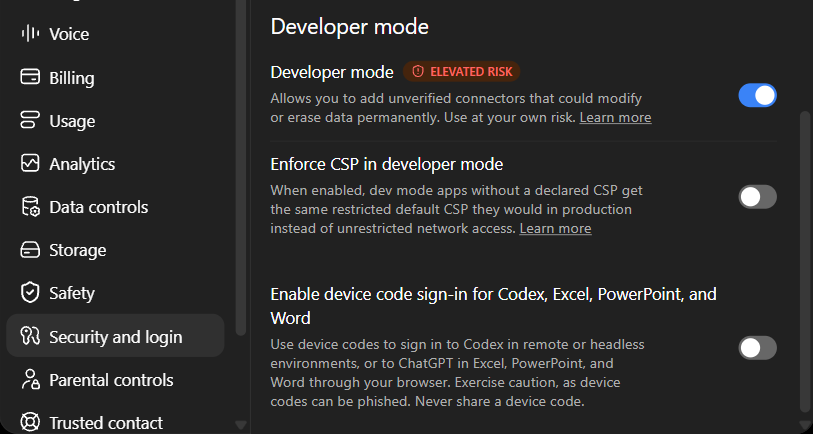
Turn Developer mode off. In Settings → Security and login, scroll down to Developer mode and turn the switch off. Skip this if you use other apps that need Developer mode.
In Board Game Lab nothing needs removing. If a tab is still paired, just close it, or disconnect it (how).
 to your computer, press the + next to Icon and choose it. It only changes how Board Game Lab looks in ChatGPT's menus.